Building A (Broke) Homelab
Like most people, I don’t really put a lot of thought into storing/organizing my media. All my pictures live on an assortment of external drives, my phone, or Google Photos through a family plan my friends and I have. We’ve recently decided the amount of storage we collectively use is just not worth the yearly cost, so we’re winding down our subscription - meaning I need to figure out my own data storage solution.
Somewhat coincidentally (although let’s be real the algorithms know me better than I know myself), I’ve been seeing a lot of homelab content online that’s been spurring me to put a server together myself, but of course I never really got around to it (two posts in and there’s already a theme).
I found a decade-old laptop in my basement that I figured I might as well use, especially since our subscription expires in less than a month expired two days ago.
Takeaway here is I will do nothing unless I have a deadline, I guess.
This setup is in no way going to be perfect, and as much as I’d love to build something from scratch I simply to do not have the cash to realistically do that right now. My goal for this project is good enough. If this laptop is able to get a new lease on life storing a little bit of my data and save me from throwing money I don’t have at a megacorp, I will be more than happy.
Hardware
The laptop in question is an Acer Aspire E5-E11 with the following specs:
- Intel Celeron N9240 (4 cores) @1.83GHz
- 4GB DDR3 1333 RAM
- 500GB HDD
…this wasn’t even great hardware in 2015. It could barely run Windows when my mom stopped using it half a decade ago, but it’s good enough to be a file server.
Edit: I found a couple other broken laptops in my basement that I cannibalized to upgrade our server a bit. The specs are now:
- same CPU
- 8GB RAM
- 240GB SSD
- 2TB SSD
Re: that second SSD - I learned a laptop DVD drive is very inexpensively adaptable to full-size SATA, so I’m now able to have separate data and boot drives. So cool!
OS
There are better-written guides out there for installation details, but let’s go over the broad strokes for posterity.
I chose to install Ubuntu Server 24.04.3 LTS, which is a headless (no GUI) version of Ubuntu. This of course saves resources on the server hardware since we’re going to be accessing this machine solely through SSH once we have it set up.
Go through the usual process of creating a bootable USB and installing - the official Ubuntu guide for this is what I followed.
While installing, make sure of the following:
- Check the ’
install OpenSSH’ option - UNcheck the ’
LVM drive’ option (unless it works for your setup!) - Partition and format your drives appropriately. In my case that looked like:
/boot/efiand/(root) -> 240GB SSD/mnt/data-> 1TB SSD
- do NOT preinstall docker through the given menu. We will be needing Docker later, but we can install it on our own through
aptinstead ofsnap, which the Ubuntu installer uses for the suite of packages it offers you.
Networking
This is it’s own can of worms that I honestly don’t know that much about, so there’s a giant chance I’m making some either dumb or outright wrong decisions here.
Once I had my network set up, I took a couple steps to make sure I could reliably access the server on both my home network and while on other networks.
Note: I have not actually gotten around to setting these up due to some access problems I’m having with literally getting into my own router’s settings… Until then I will just roll the dice on the server’s current IP not being reassigned.
SSH
The last step here is to access the server from our own machine through SSH. OpenSSH was already installed during setup, so all we need to do is find the server’s IP address via ip addr, and then on our machine type ssh {your ip}, then login using the username and password you set during the install.
Assuming all goes well, you should now be connected!
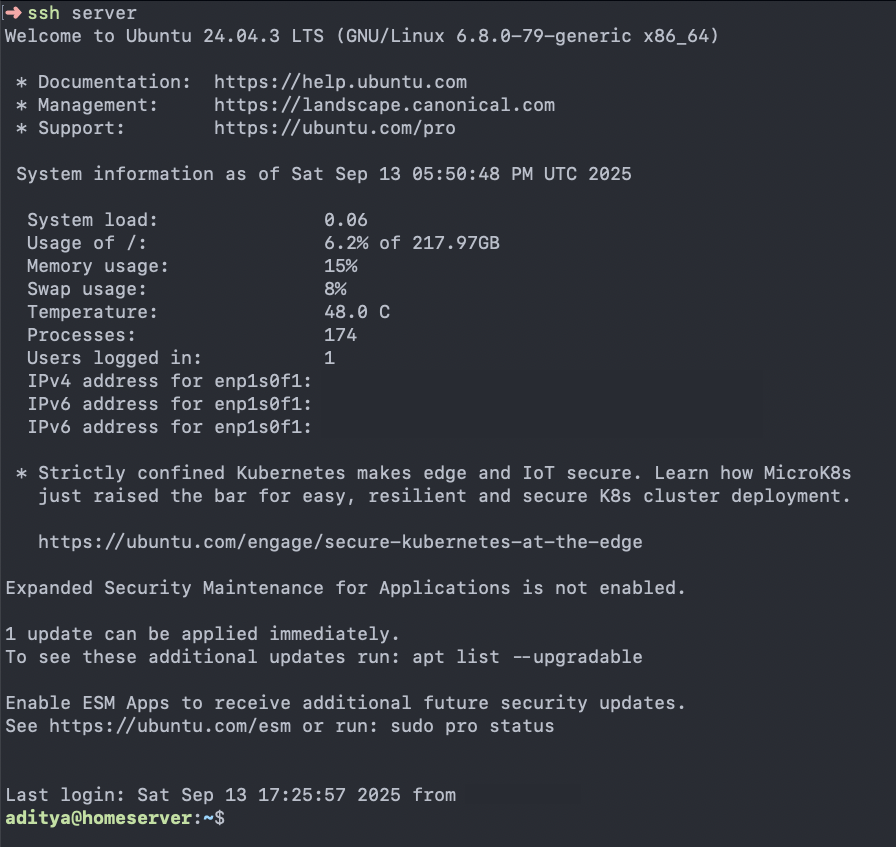
To make connecting less annoying in the future, we can add the following to the end of our ~/.ssh/config:
Host {servername}
User {username}
HostName {ip address}
Now you can connect by simply typing ssh servername and entering your password.
If you’re even lazier and don’t want to enter your password, set up an rsa keypair by running ssh-keygen, leaving the filename and passphrase blank (this is terrible I know).
Once generated, run ssh-copy-id {username}@{ip address}.
Now we can ssh servername with zero annoyance (and 1000% less security)!
The last little bit of setup I annoyed myself to all hell through was editing a couple lines in /etc/systemd/logind.conf to tell the laptop not to sleep or shut down when the lid was closed.
HandleLidSwitch=ignore
HandleLidSwitchExternalPower=ignore
HandleLidSwitchDocked=ignore
LidSwitchIgnoreInhibited=no
I’m not sure if I needed to change all of these, but it works so I’ll leave it at that.
And with that, our server is set up and accessible! Now we can finally get to doing what we wanted to in the first place.
Time Machine
Step one is to move files to and from this server, with the end goal of being able to use it as a Time Machine backup for my Mac.
To do this, we’ll install Samba with sudo apt install samba, then make a timemachine folder on our storage drive in /mnt/data.
This is probably unnecessary, but I at some point decided I needed to make separate users for each service (time machine, immich) to separate out file ownership in each segment. To do that, we just create new users and chown their respective folders.
sudo adduser --system --group timemachine
sudo chown -R timemachine:timemachine /path/to/timemachine
Ditto for Immich later on.
MacOS Compatibility
Before we’re 100% set up, we have to change some things in Samba so it plays nicer with MacOS. I can’t say I fully understand the intricacies of it, but we just have to set a couple options in the fruit library that comes with Samba.
I’m not going to explain every line (the resources I link at the end do a much better job), but here’s my /etc/samba/smb.conf:
# global config
[global]
map to guest = never

## fruit global config
vfs objects = fruit streams_xattr
fruit:metadata = stream
fruit:aapl = yes
fruit:veto_appledouble = no
fruit:zero_file_id = yes
fruit:nfs_aces = no
fruit:wipe_intentionally_left_blank_rfork = yes
fruit:delete_empty_adfiles = yes
fruit:posix_rename = yes
fruit:copyfile = no
fruit:model = iMac21,1@ECOLOR=4 # optional: finder icon displayed by the mounted share
# full list of possible icons in the resources section at the end!

## macos compatibility
min protocol = SMB2
ea support = yes

# share config
[TimeMachine]
vfs objects = catia fruit streams_xattr
fruit:time machine = yes
fruit:time machine max size = [SIZE_HERE] # choose the capacity of your backup ie. 500G
path = /path/to/backup
available = yes
valid users = [USER] # your user, in this case timemachine
browseable = yes
guest ok = no
writable = yes
Once you save the config file, run testparm to check for syntax errors.
Set a password for your share user via sudo smbpasswd -a {username} and restart the samba daemon with sudo systemctl restart smbd.
Backup
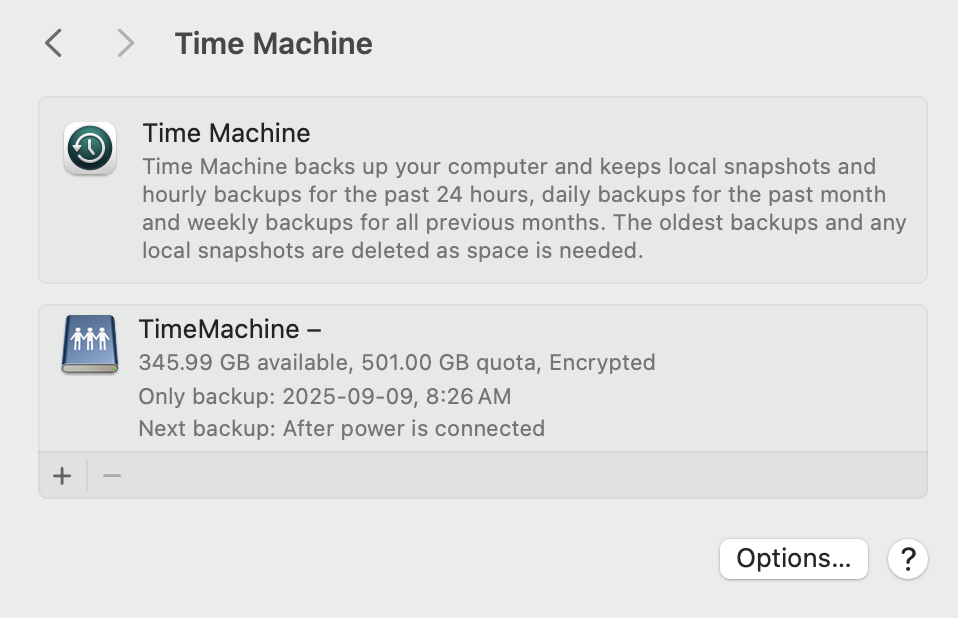
We are now good to run Time Machine! On your Mac, use CMD-K in Finder to connect to the server with smb://{your server ip here}. Enter your Samba username and password you set earlier, and after mounting the disk you can add it to Time Machine from Settings > Time Machine, and (finally) let it do its thing!
Immich
Now - the whole reason I started this project in the first place. This is actually super easy, which is why I left it until the end. The hardest part of this section is just waiting, which if you’ve read this far, you already know how to do.
Docker
I mentioned earlier to not install Docker through the Ubuntu installer.
If you have zero foresight like me and do that anyways, just uninstall the snap and reinstall it via apt following the docs on Docker’s website.
Immich Setup
Setting up is actually very simple - just download their docker-compose.yml and .env files from the install docs, populate the .env with your preferred database/library locations (I put the db on my boot drive to leave more space for the library), and then run the container.
Connect to http://{your ip}::2283, follow the prompts, and you’re all set up! You can also install the mobile app on whatever devices you have to start backing those up as well.
Populating Immich With … Immiches
Now the hardest part - waiting for things to happen.

Google Photos Takeout
Like I mentioned in the intro, most of my pictures are on Google Photos. Google offers a nice tool called Takeout to let you easily download your data (from any Google service by the way) in convenient zip files. I chose the largest size (50GB), and had 9 .tgz archives to download, which took over three days (with lots of interruptions) thanks to my atrocious network.
Immich-Go
After cursing out Rogers, we have our zip files downloaded. Now what?
The simplest way to process a Takeout archive I found is by using Immich-Go, a wonderful tool for uploading large quantities of files to Immich while handling all the necessary metadata processing and album syncing.
You just need to unzip your files (only if they’re .tgz archives, regular .zips can stay zipped!), and run the tool!
It has a bunch of options in the docs on GitHub you can adjust to your liking - the command I ended up using was: immich-go upload from-google-photos --server=http://{my-ip}:2283 --api-key={api-key} --manage-burst=Stack --manage-raw-jpeg=StackCoverJPG /path/to/my/takeout.
Wait for Everything to Complete
I had to wait a little over 12 hours (basically overnight) for everything to upload. I will note I installed Immich-Go on my server itself so I didn’t have to deal with more shitty WiFi than I had to, but the point of the thing is the ability to bulk upload whatever from not the server.
But hey, we’re finally migrated! All of our data is now on the server and our photos are available on Immich.
Wait a Little Bit More
…Well, not quite. Our pictures are there, but Immich has to spend a boatload of time on jobs like generating thumbnails, extracting metadata, and (optionally) running an ML model to detect faces like Google Photos. It took me somewhere over 72 hours to get through 70 000 images just for the thumbnail generation, let alone anything else - the face recognition is still incomplete to this day has finally completed!
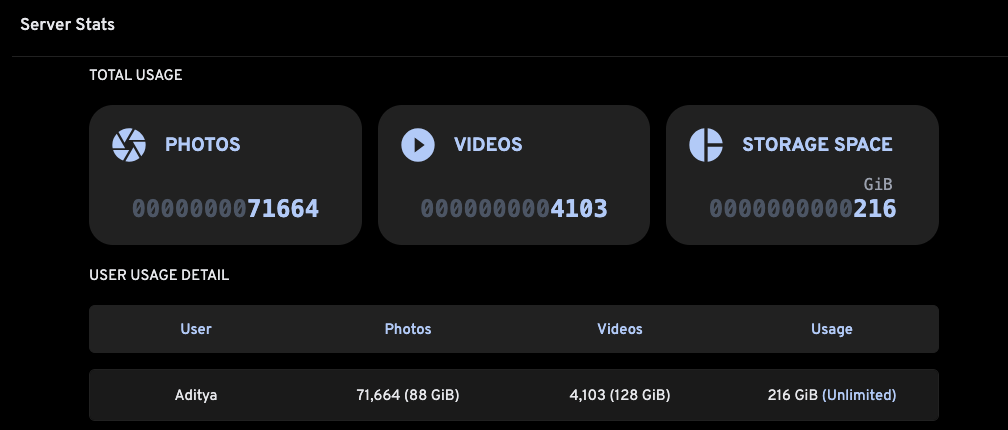

It is, admittedly, also my bad for running an ML model on a GPU-less machine with an already underpowered CPU.
Conclusion
So it’s not perfect, and I will run out of storage sooner than later with zero expansion room on this device, but we have a completely functional file storage server! I learned a lot about so many things working on this project, and I’m excited to have a server to play with now for future projects. I still have to set up a static IP and port forward the server, potentially to a custom domain, so I can access it from outside my home network - I will update this post when all of those things happen.
I’ve linked all of my research for this project in the section below, in case you’d like more detail on the processes I followed. Until then, I can finally stop stressing about having to choose between 1) losing all my data and 2) losing all my money.
References
- Configure Samba To Work Better With OS X
- Configuring Samba Servers To Work Better With MacOS
- MacOS Device Icons
- Ultimate Guide To Configuring Samba For Time Machine Backups
- Setup Apple Time Machine Network Drive With Samba On Ubuntu 22.04
- SSH RSA Keypair
- The $0 Home Server
- Transforming Your PC Into A Home Server